1. Getting Started
Getting Started
WorkoutBuddy is built to guide your full gym workflow from planning to logging to review. You use it to choose a plan, open the session scheduled for today, log each set as you train, review old sessions in Workout Log, save favourite exercises, track progress photos, review analytics, and use support tools such as the Plate Calculator, Nutrition section, and Training Advice section.
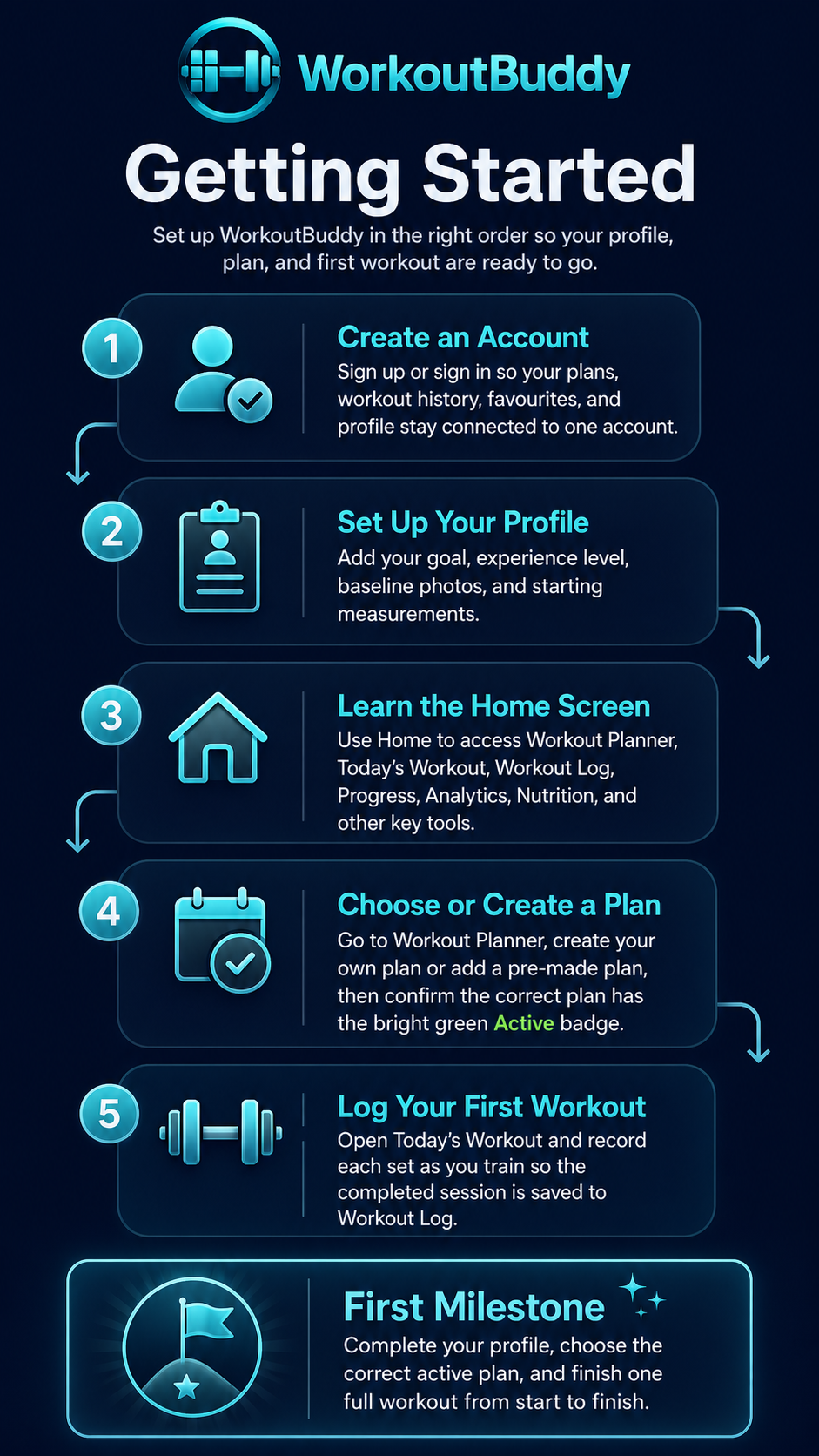
The easiest way to get started is to set up the app in the same order you would use it in real life. That gives you a clean profile, the right active plan, and a clear Today’s Workout screen before your first session.
- Create an account or sign in so your plans, workout history, favourites, profile details, and progress data stay connected to one account.
- Open Profile and choose your training goal and experience level from the dropdowns so the app setup matches the way you want to train.
- Add your profile photos or original starting photos early so you have a proper reference point for future progress comparisons.
- Use the Home screen to learn where Workout Planner, Today’s Workout, Workout Log, Progress, Analytics, Exercise Database, Plate Calculator, Nutrition, and Training Advice are located.
- Go to Workout Planner and either build a plan, add a pre-made plan, or explore AI Plans.
- Check which plan has the bright green Active badge, because that active plan controls what appears in Today’s Workout.
- Open Today’s Workout when you train and record each exercise set by set so the completed session is stored in Workout Log.
Your best first milestone is simple: finish profile setup, choose the correct active plan, and log one complete workout from start to finish.
2. Creating an Account / Signing In
Creating an Account / Signing In
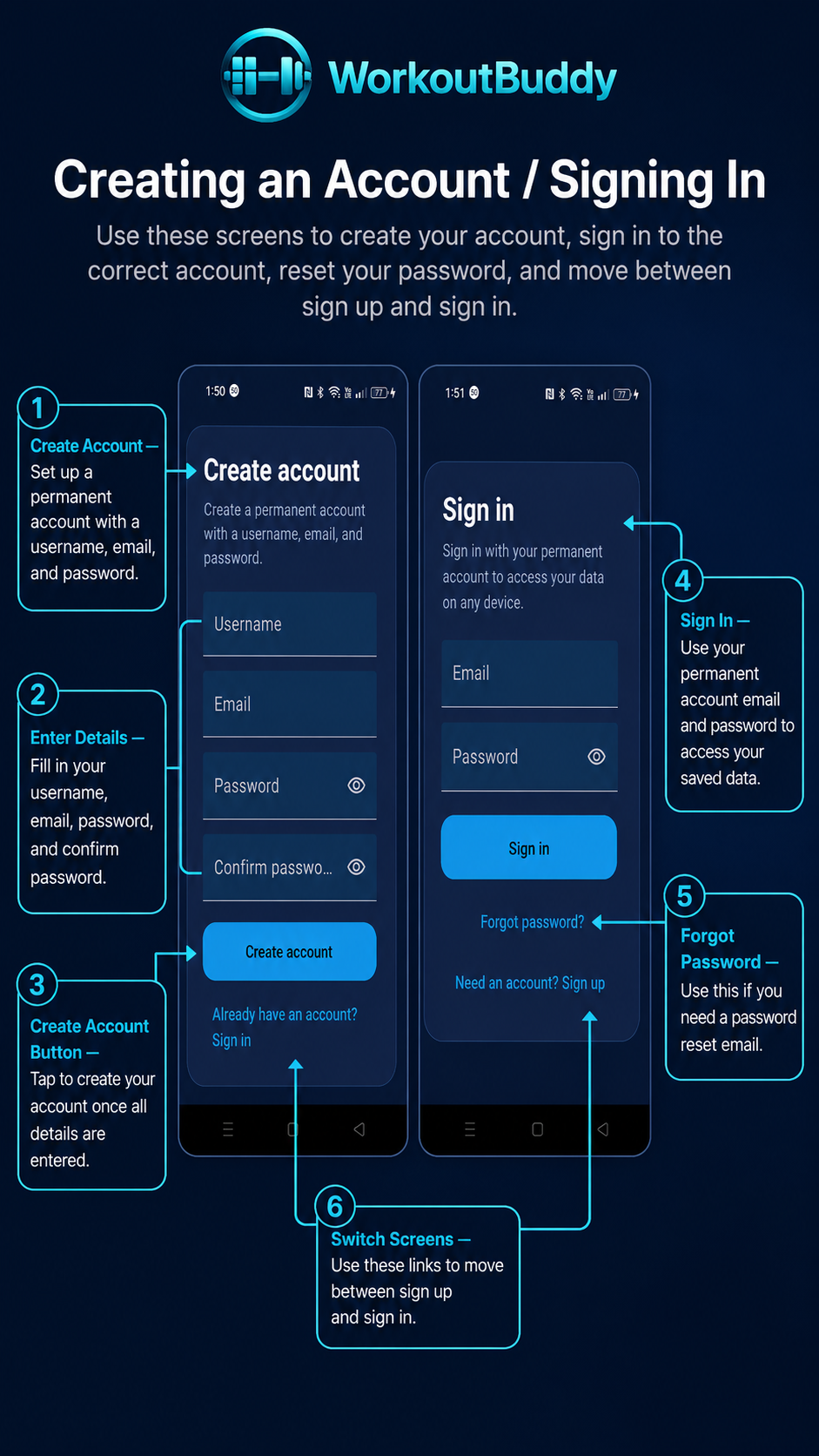
Your WorkoutBuddy account is what keeps your saved plans, workout history, favourites, profile details, progress photos, and subscription access connected together. If you already used the app before, always sign in with the same account so your saved data appears correctly.
- Open the sign-in screen and choose the create account option if this is your first time using WorkoutBuddy.
- Enter your email address carefully. This matters because password reset emails and account access depend on it.
- After creating your account, sign in and continue into the app setup flow.
- If you already have an account, sign in with that same email so your existing plans and workout data load under the correct account.
- If you forget your password, use the forgot password option and follow the reset link sent to your email.
- You need an internet connection for creating an account, signing in, and receiving password reset emails.
- If the reset email does not arrive quickly, check spam, junk, promotions, and filtered folders before trying again.
- If you sign in with a different email from the one you used before, your old data will not appear under that new account.
If plans, favourites, or workout history look missing after sign-in, first confirm that you used the same email address as before.
3. Home Screen Overview
Home Screen Overview
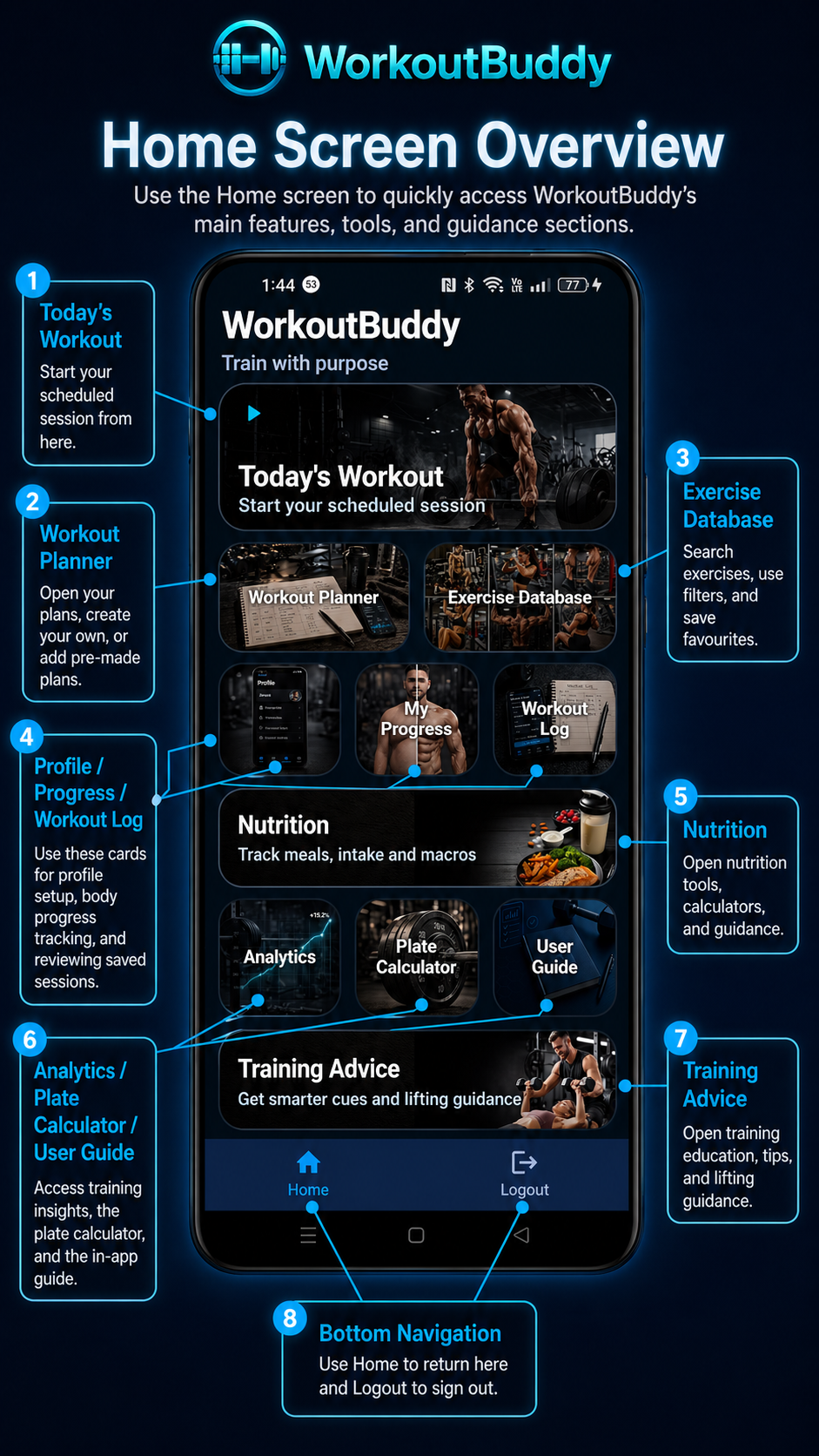
The Home screen is the app’s main dashboard. It shows the key WorkoutBuddy sections as cards and banners so you can move quickly into the area you need without digging through menus.
From Home, the app currently links directly to:
- Workout Planner
- Today’s Workout
- Workout Log
- Exercise Database
- My Progress
- Analytics
- Plate Calculator
- Nutrition
- Training Advice
- Profile
- User Guide
The bottom navigation is very simple in the current app build: it gives you a Home button and a Logout button. Sign out is handled there, not from a separate Settings screen. Several Home cards are premium-gated, so if your premium access is inactive the app opens the paywall instead of entering that feature.
4. Profile
Profile
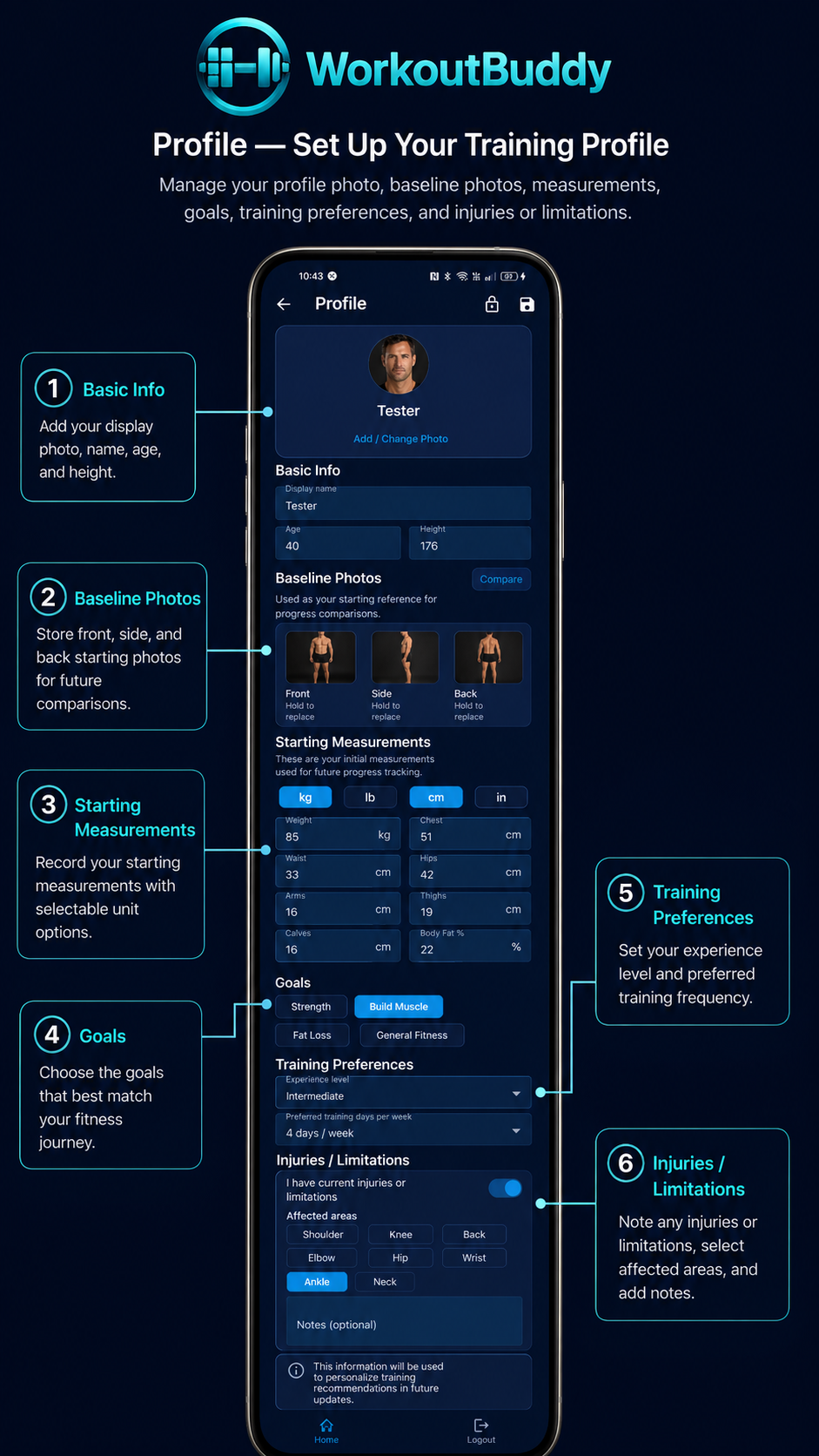
Profile is one of the richest setup screens in the app. It includes your display photo, basic info, baseline photos, starting measurements, goals, experience level, preferred training days per week, injuries or limitations, and password change access from the app bar.
- Basic info includes display name, age, height, and your profile photo.
- Baseline Photos includes separate Front, Side, and Back photo slots.
- Starting Measurements includes weight, chest, waist, hips, arms, thighs, calves, and body fat, with selectable unit chips for weight and length.
- Goals currently include Strength, Build Muscle, Fat Loss, and General Fitness.
- Profile also includes Experience level, Preferred training days per week, and an Injuries / Limitations section with injury notes.
Baseline photos are especially important because the Compare action on this screen lets the user compare those starting photos against a selected progress date. The save action is also on this screen, and password change is launched from the lock icon in the app bar.
5. Workout Planner / Creating Plans
Workout Planner / Creating Plans
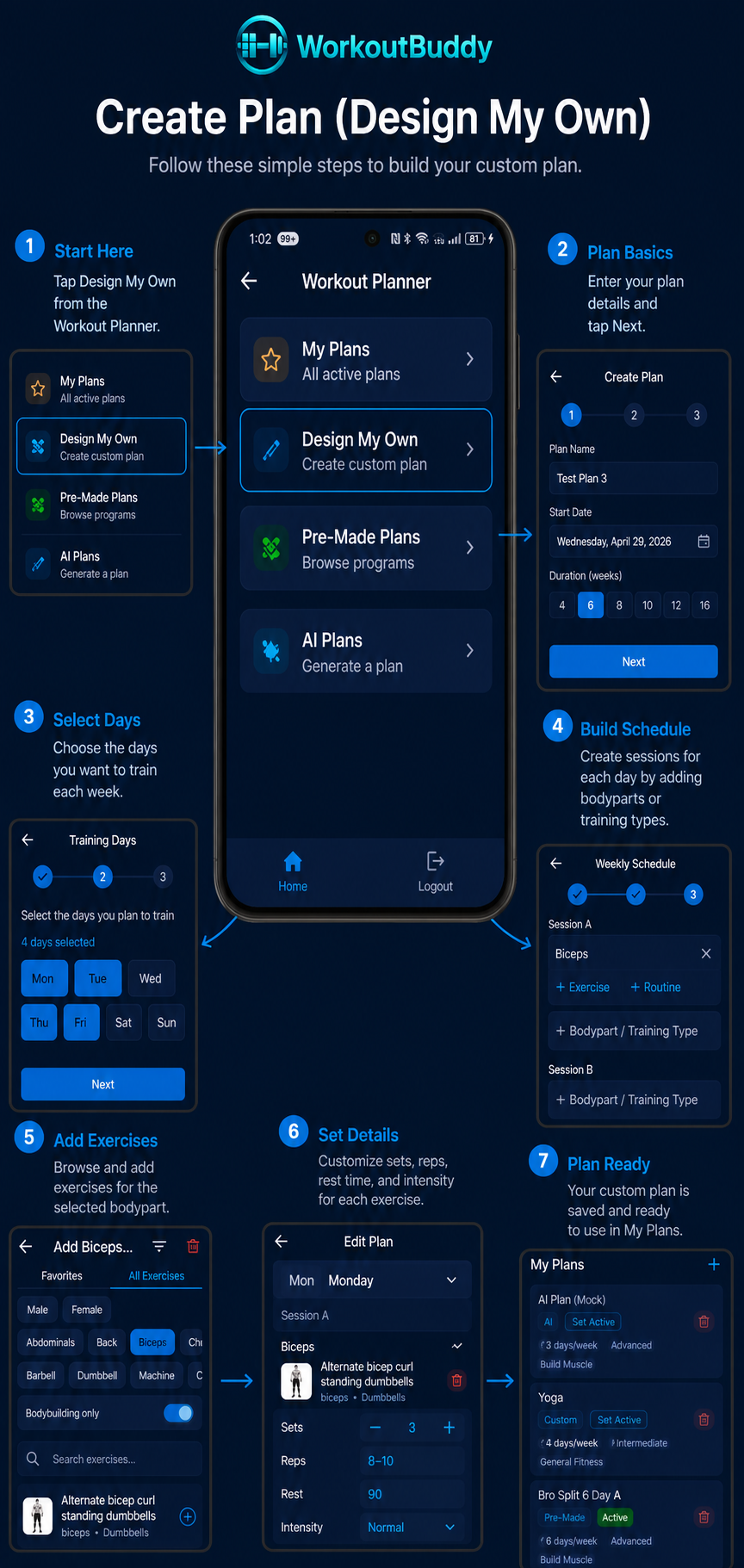
Workout Planner is where you control the plan that powers Today's Workout. It is the place to open your saved plans, create a custom plan, browse pre-made plans, and use AI Plans. If Today's Workout is showing the wrong session, the first thing to verify is which plan is marked Active here.
The planner is organised around five main areas: My Plans, Design My Own, Pre-made Plans, AI Plans, and the plan calendar view. Plans added through any of those paths are brought together in My Plans, where the active plan is clearly marked and ready to use.
A. My Plans
My Plans is the main list of plans that belong to your account. It is the top area on the Workout Planner page and acts as the working library for everything you have already created or added.
- Plans created through Design My Own, selected from Pre-made Plans, or generated through AI Plans appear here.
- The plan currently in use is marked with a bright green Active badge.
- Today’s Workout reads from that active plan, not just the last plan you opened.
- If Today’s Workout is not matching what you expected, compare the session on screen against the plan marked Active in My Plans.
- When you switch plans, always confirm the new plan is the one showing the Active badge before you leave Workout Planner.
B. Design My Own
Design My Own opens the custom plan builder. It is the best option when you want to create your own plan structure instead of relying on a ready-made plan.
- Start by entering the main plan details, including plan name, start date, number of weeks, experience level, goal, and training location.
- Training location can be set to home gym, outdoors, small gym, or large gym.
- Choose which days of the week you want to train so the schedule matches your real routine.
- After that, build the plan structure with days, sessions, bodyparts, exercises, and the details for each exercise.
- A single training day can include more than one session, so you are not limited to one block of training per day.
- You can add individual exercises manually, or insert a pre-made individual bodypart routine into the plan to save time.
- That makes Individual Bodypart Workouts useful not only as targeted workouts, but also as fast building blocks inside a custom plan.
- For each exercise, you can set details such as sets, reps, rest timer, and intensity.
- The intensity dropdown includes options such as Drop set, Rest pause, Forced reps, Superset, Tri-set, and Giant set.
- After you save the plan, it appears in My Plans where you can review it and set it active.
C. Pre-made Plans
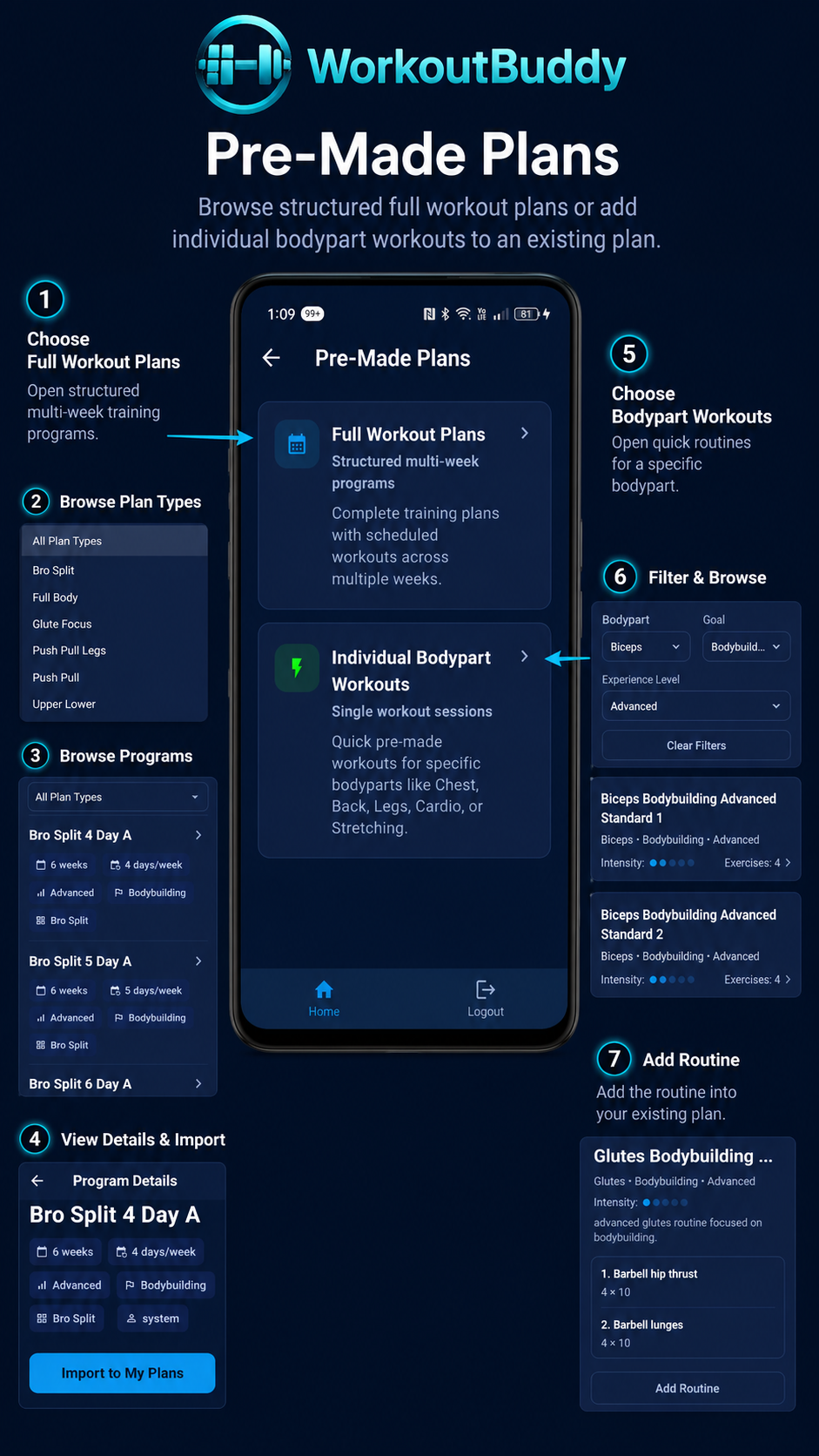
Pre-made Plans gives you ready-to-use options so you can start training without building everything yourself. This is the fastest route for users who want structure immediately.
1. Full Workout Plans
Full Workout Plans are complete structured routines. They cover multiple training days and provide a full weekly setup rather than a single one-off session. Once added, they appear in My Plans and can be used as your active plan for Today’s Workout.
2. Individual Bodypart Workouts
Individual Bodypart Workouts are focused routines for one bodypart or muscle area. They can be used as a targeted workout on their own, but they can also be inserted while designing your own plan. That makes custom plan building much faster when you want a ready-made bodypart session instead of manually adding every exercise one by one.
D. AI Plans
AI Plans lets you generate a workout plan by answering a short set of setup questions. The app uses your selected goal, experience level, training schedule, and available choices to create a structured plan that can be added to My Plans.
Review the generated plan before using it, just like you would with any training program. Once saved, the plan appears in My Plans, where you can open it, check the schedule, and make it Active so Today's Workout follows it.
E. Plan Calendar / Date Viewing
Users can also open a selected plan from My Plans and use that plan’s calendar. The calendar lets you choose a day or date in the plan so you can inspect what workout is scheduled there or review a past or future date inside that plan.
- Open the plan from My Plans first, then use the plan calendar to choose the date you want to inspect.
- This calendar-based date view is for inspection only.
- Workouts viewed from the plan calendar are read-only and cannot be edited from that view.
- You cannot mark sets as completed later from the calendar inspection view if they were not completed during the actual workout.
- Workout completion needs to happen during the live Today’s Workout execution flow.
The key rule of Workout Planner is simple: create or add the plan you want, then confirm the correct plan has the bright green Active badge before you expect Today’s Workout to follow it.
6. Today’s Workout / Logging a Session
Today’s Workout / Logging a Session
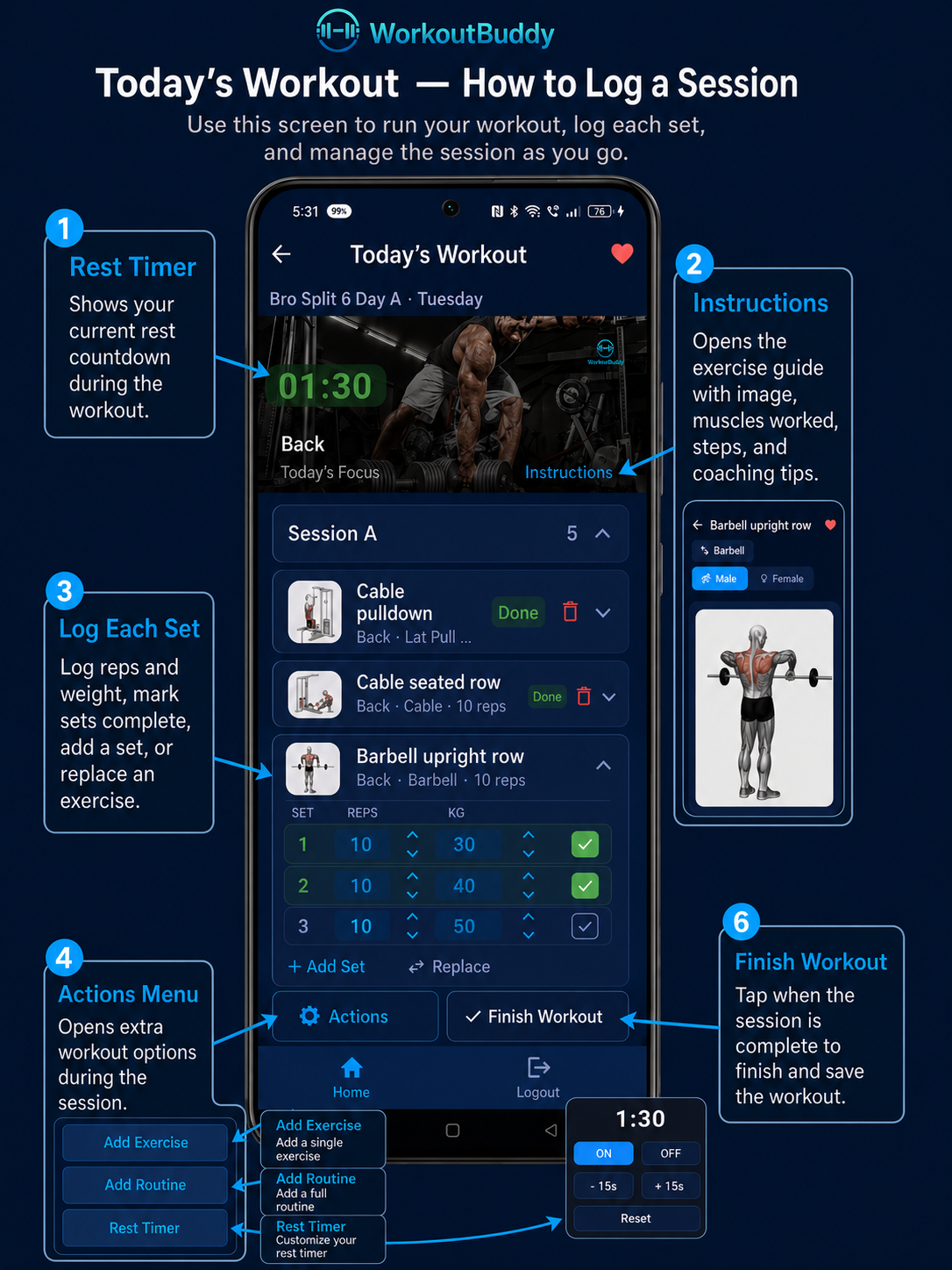
Today’s Workout is the live workout execution screen. It is where you perform the workout scheduled for the current day from your active plan and log the work as you do it.
- If the active plan schedules a workout for that day, Today’s Workout shows that session.
- If the active plan marks the day as rest, Today’s Workout shows a rest day instead of a lifting session.
- If no plan is active, go to Workout Planner, open My Plans, and set the correct plan as Active.
- This is the screen where you log sets, reps, weight, and completion during the actual workout.
During a live editable session, the Actions button gives you extra workout options while you train. This is where the app supports session changes and add-ons in real time, not from the read-only plan calendar inspection view.
- Add Exercise lets you add an extra individual exercise to the current workout. This is useful if you want extra work, need to substitute something, or decide to add another movement during the session.
- Add Routine lets you add a pre-made routine or bodypart workout into the current workout. This is useful when you want to add a ready-made block of work instead of manually adding every exercise.
- Rest Timer Settings lets you adjust the rest timer behaviour and settings for the workout session.
The live session flow also lets you add an extra set inside an expanded exercise and replace an exercise with a different exercise. Replacing an exercise is useful if equipment is unavailable, the exercise area is busy, you want an alternative movement, or you need to adjust the session for any reason.
- Open Today’s Workout when you arrive at the gym or just before starting.
- Check the listed session so you know it matches the workout expected from your active plan.
- Complete the workout one exercise at a time and log each set as you go.
- Use the recorded numbers and completion state to track what you actually did rather than guessing later.
- Use the Finish Workout action when you are done. After a workout is finished, the app treats it as completed and locks further editing.
Once the workout is finished and saved, it appears in Workout Log. If you want to inspect a scheduled, past, or future date from a plan, that is accessed from the selected plan calendar in Workout Planner and is read-only. You cannot use that inspection view to edit the workout or complete sets later.
7. Workout Log
Workout Log
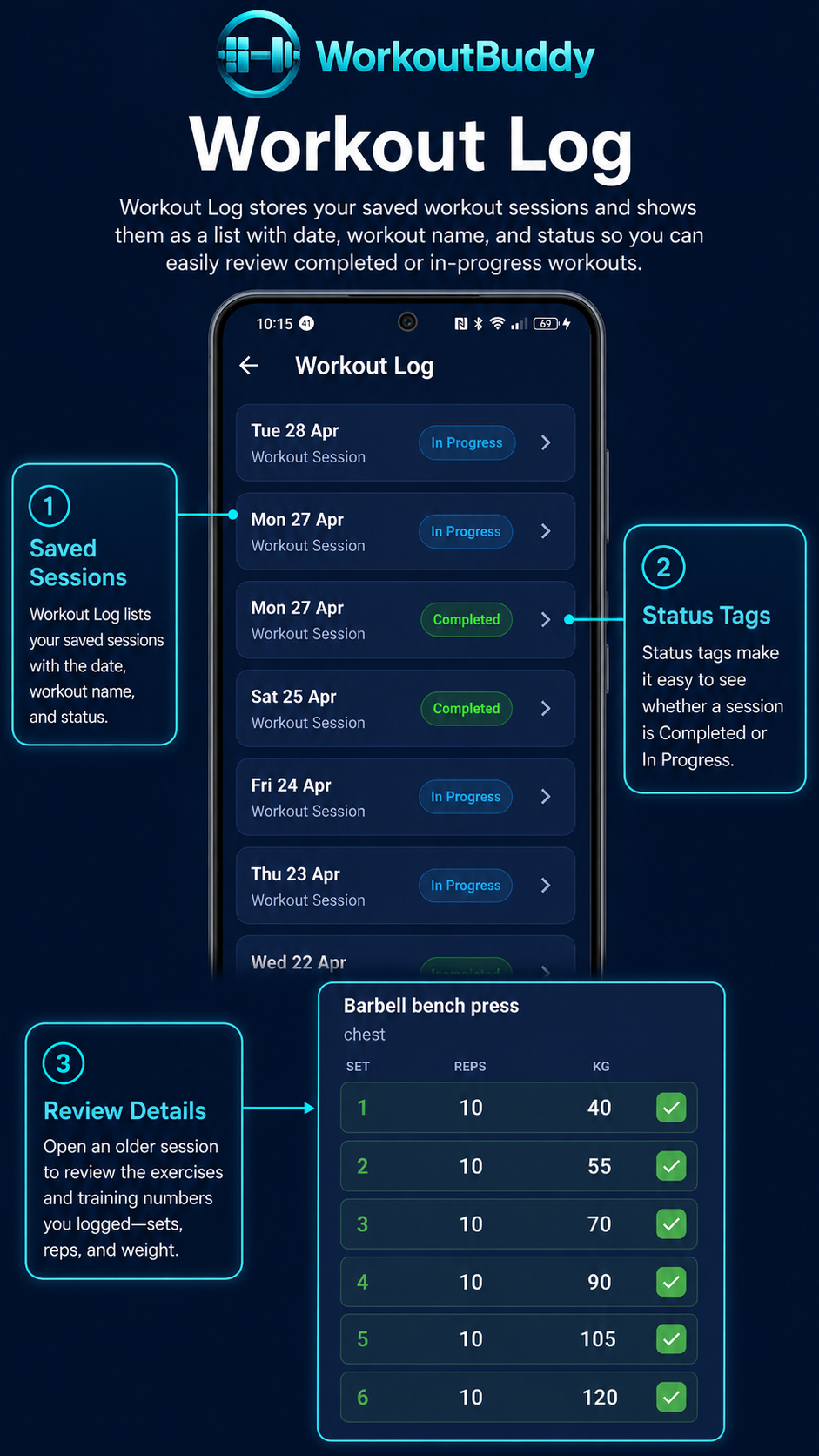
Workout Log stores your saved workout sessions and shows them as a list with date, workout name, and status. In the current app, sessions can appear as either Completed or In Progress, which makes it easy to see whether a workout was finished or left unfinished.
- Open older sessions to review the exercises and training numbers you logged.
- Use it before repeating a workout so you can check what you lifted last time.
- Review older entries to see whether your weights, reps, or overall performance are improving.
- If a session is missing, first confirm it was actually created and saved from Today’s Workout.
Workout Log is one of the most practical parts of the app because it removes guesswork. Instead of trying to remember what happened in your last chest, leg, or back session, you can open the log and see the record directly.
8. Exercise Database & Favourites
Exercise Database & Favourites
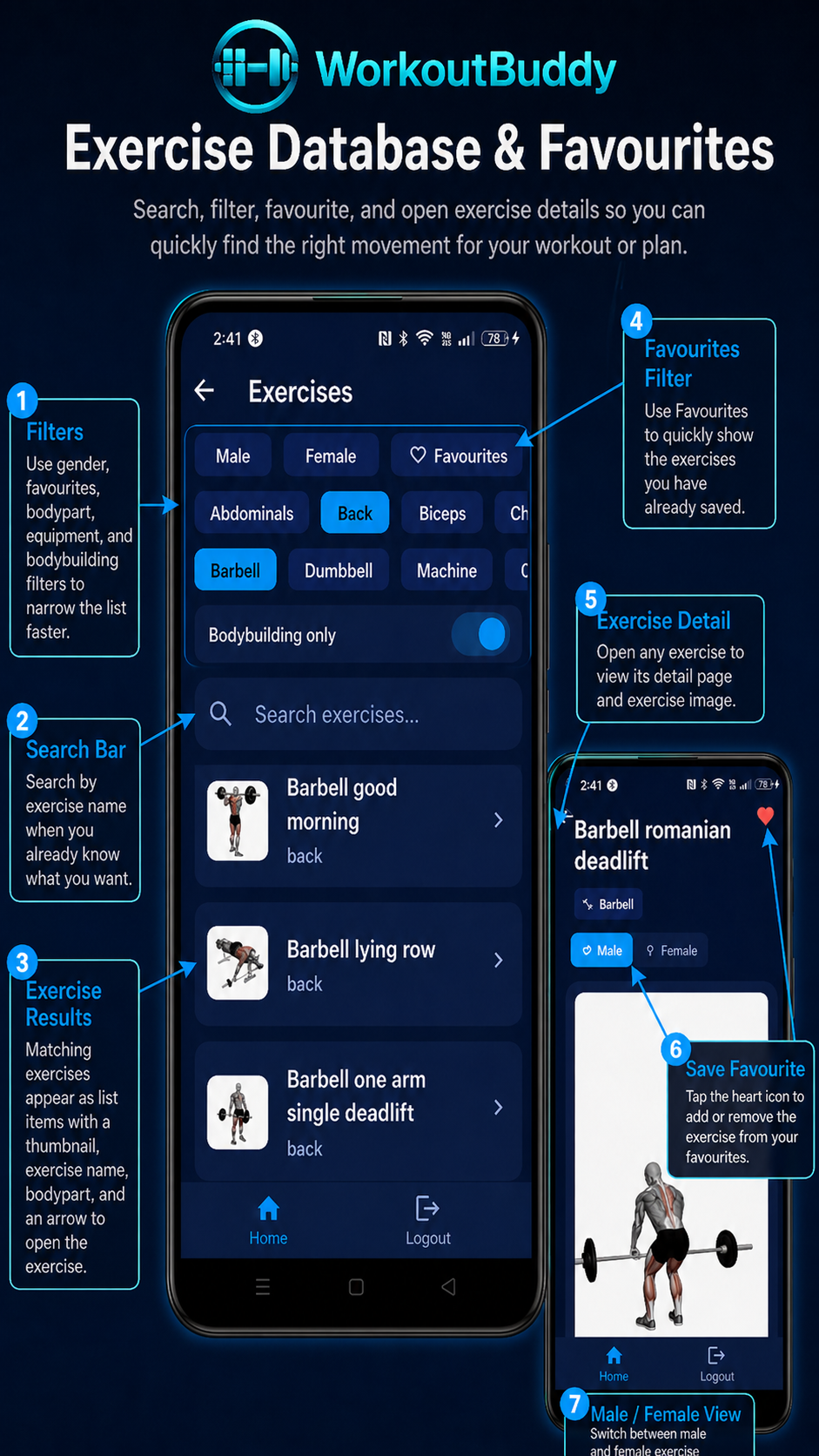
The Exercise Database is more than a simple list. It lets you search, filter, favourite, and open detailed exercise instructions so you can choose the right exercise before adding it to a workout or plan.
- Use the search bar when you already know the exercise name you want.
- Search works together with filters so you can narrow the list down faster.
- The filter options can include Male or Female exercise versions where available, Favourites, bodypart or muscle group filters such as legs, shoulders, or forearms, equipment filters such as barbell, dumbbell, machine, or cable, and a Bodybuilding only toggle.
- Matching exercises appear as cards or list items, usually showing the exercise name, bodypart, thumbnail or image if available, and an arrow to open the exercise.
- Use Favourites for exercises you perform often so they are easier to find later when building or editing plans.
When you open an exercise detail page, you can tap the heart icon to add or remove the exercise from Favourites, watch the instruction video if available, view the start and end position images, see the primary and secondary muscles, read the step-by-step how-to instructions, and review coaching tips.
Favourites are especially useful when you repeat the same movements often. They make it faster to find exercises again later, and the Favourites filter can be used to show only the exercises you have already saved.
9. Progress
Progress
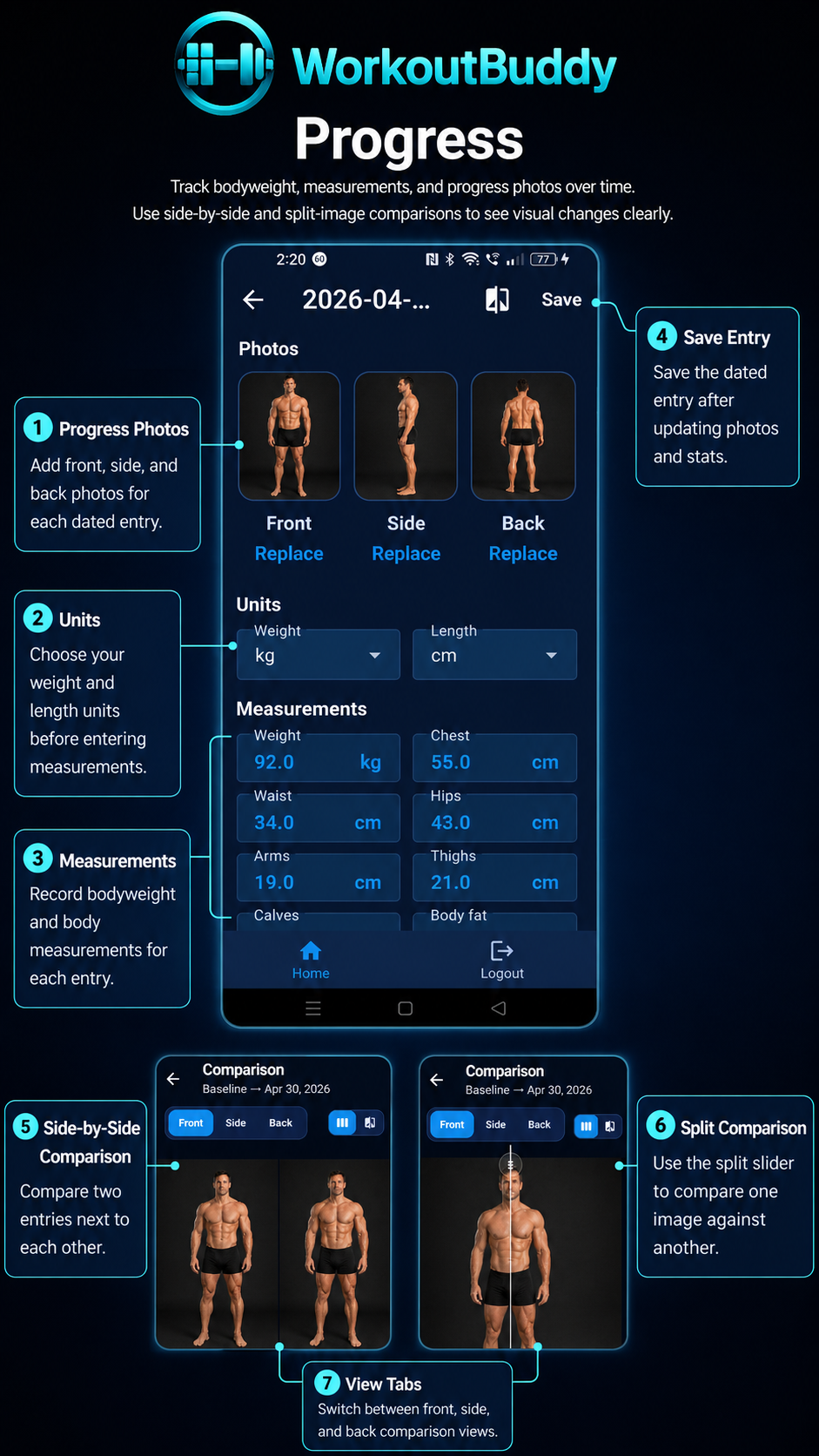
My Progress is mainly about body progress tracking. It is the part of the app used to track how your body is changing over time rather than how your workouts are performing.
- Use it to track bodyweight, body measurements, and progress photos over time.
- Original or starting photos matter because they give you a proper reference point for later body comparisons.
- It includes visual comparison tools such as side-by-side photo comparisons and split-image comparisons.
- You can still add and open dated progress entries, and the app shows useful entry details such as photo count and weight summary.
In simple terms, My Progress is for body progress. Use it when you want to review photos, measurements, bodyweight, and visual physique changes instead of workout-performance data.
10. Analytics
Analytics
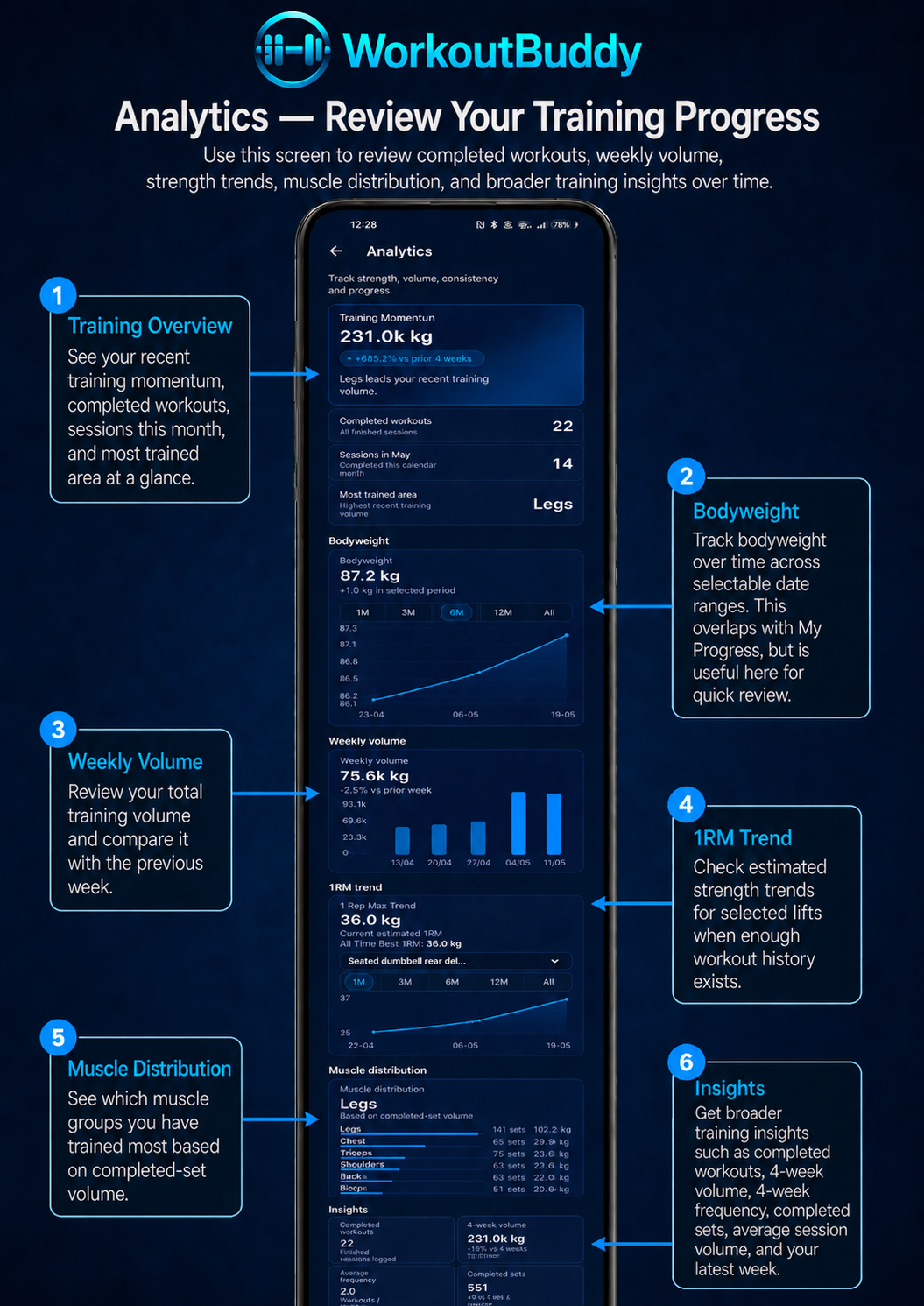
Analytics is where you review your workout performance and training trends over time. It uses your completed workout history to show volume, consistency, estimated strength progress, bodyweight trends, muscle distribution, and compact training insights.
- Training Momentum shows your recent training volume and compares it with the prior 4 weeks.
- Completed Workouts shows the total number of finished sessions you have logged.
- Sessions in the current month shows how many workouts you have completed in the current calendar month.
- Bodyweight tracks your bodyweight trend over time and lets you switch between time ranges such as 1M, 3M, 6M, 12M, and All.
- Weekly Volume shows how much total training volume you are completing each week.
- 1RM Trend estimates one-rep max progress for a selected exercise based on your completed weighted sets.
- Muscle Distribution shows completed-set volume across bodyparts so you can see where your training work is going.
- Insights gives a compact summary of key training metrics, including completed workouts, 4-week volume, 4-week frequency, completed sets, average session volume, and latest week performance.
Analytics becomes more useful as you complete more workouts. With only a small amount of data, some graphs may look simple or incomplete. After more completed sessions are logged, the charts, weekly volume, 1RM trend, and insights become much more meaningful.
The clearest way to separate the two sections is this: My Progress is mainly about body progress, while Analytics is mainly about workout and training progress. If you want body photos, measurements, and visual comparison, use My Progress. If you want workout data, trends, completed sessions, volume, and training insights, use Analytics.
11. Plate Calculator
Plate Calculator
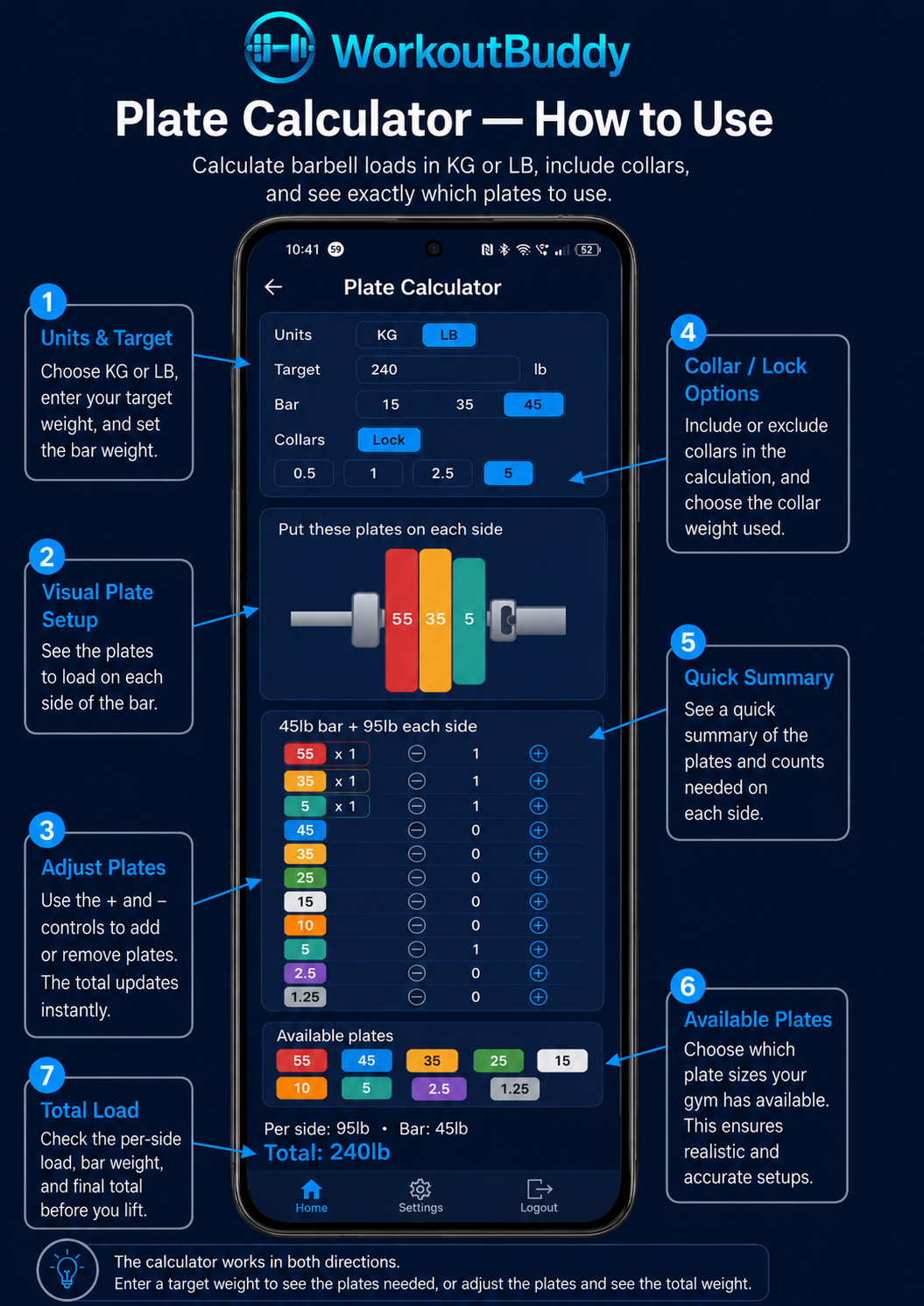
The Plate Calculator helps you load a barbell correctly in either kilograms or pounds. Enter the weight you want to lift, choose the unit, select the bar weight, and the app shows which plates to load on each side.
- Use the KG / LB toggle to switch between metric and imperial plate loading.
- Enter your target total weight, then choose the bar weight that matches the bar you are using.
- The calculator subtracts the bar weight and shows the plates needed on each side of the bar.
- The Lock option lets you include or exclude collars in the calculation.
- Collar weight can be adjusted, so you can match the collars or locks available in your gym.
- The visual bar display shows the plate setup per side.
- The quick summary shows the plate sizes and counts needed on each side.
- You can also adjust the plate counts manually using the plus and minus controls. The total updates instantly.
- Use Available Plates to choose which plate sizes are available, so the calculator gives realistic loading options for your gym.
The calculator works in both directions. You can enter a target weight to see the plates needed, or adjust the plates already on the bar and let the app calculate the total. For example, if you select LB, enter 240lb, choose a 45lb bar, and include 5lb collars, the app calculates the remaining load and shows the plates needed on each side. If you switch to KG, the calculator uses metric bars, metric collars, and metric plates instead.
12. Nutrition Section
Nutrition Section
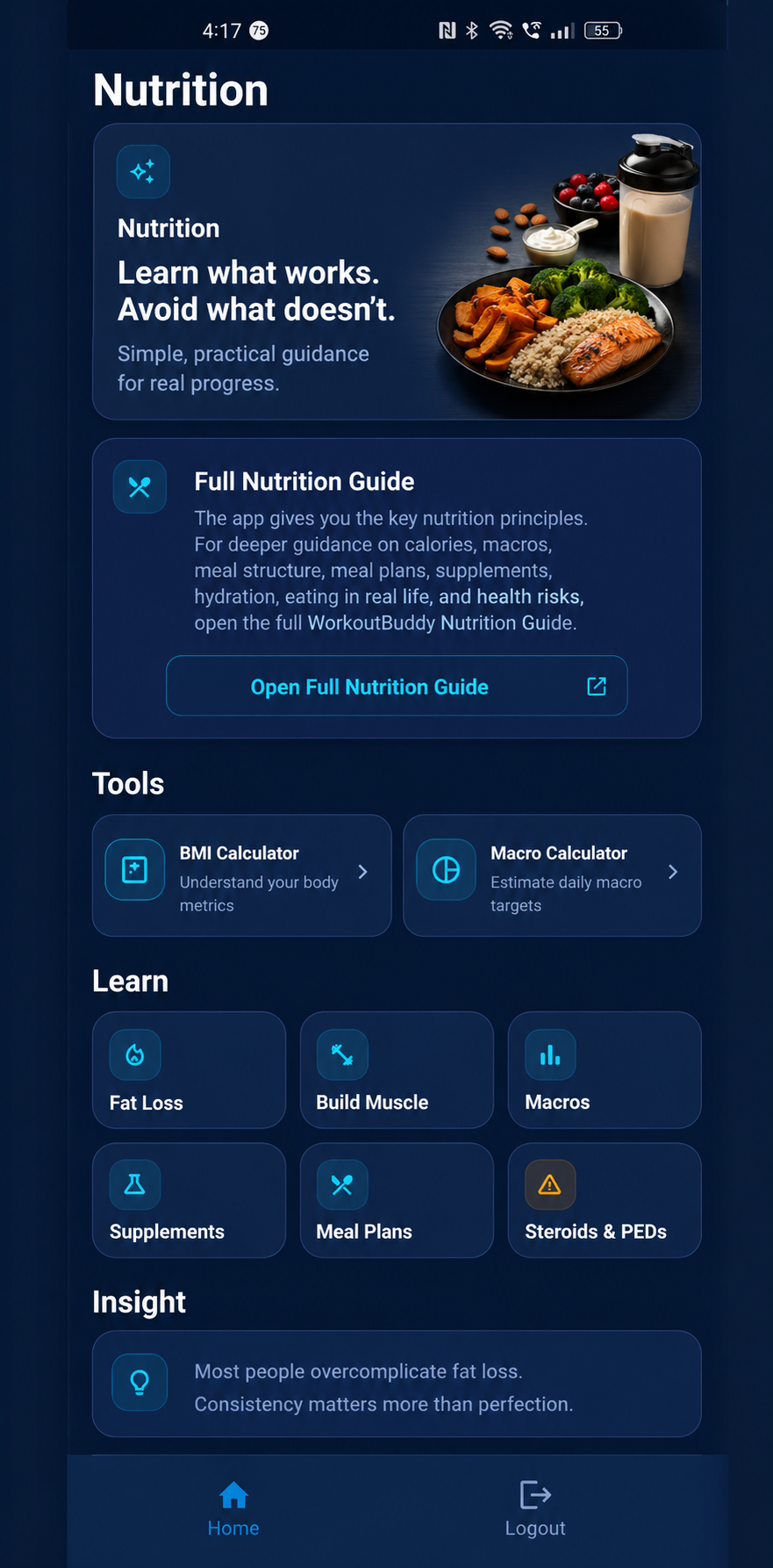
The Nutrition section is a full in-app hub, not just a short note page. It includes a hero section, a link to the full external Nutrition Guide, dedicated tool cards, and a set of topic screens inside the app.
- The tools area currently includes a BMI Calculator and a Macro Calculator.
- The learning area currently includes Fat Loss, Build Muscle, Macros, Supplements, Meal Plans, and Steroids & PEDs.
- The section also includes a direct link to the full website Nutrition Guide for deeper reading.
This section is premium-gated from Home in the current app. If premium access is inactive, tapping Nutrition from Home opens the paywall before the user can enter the hub.
13. Training Advice Section
Training Advice Section
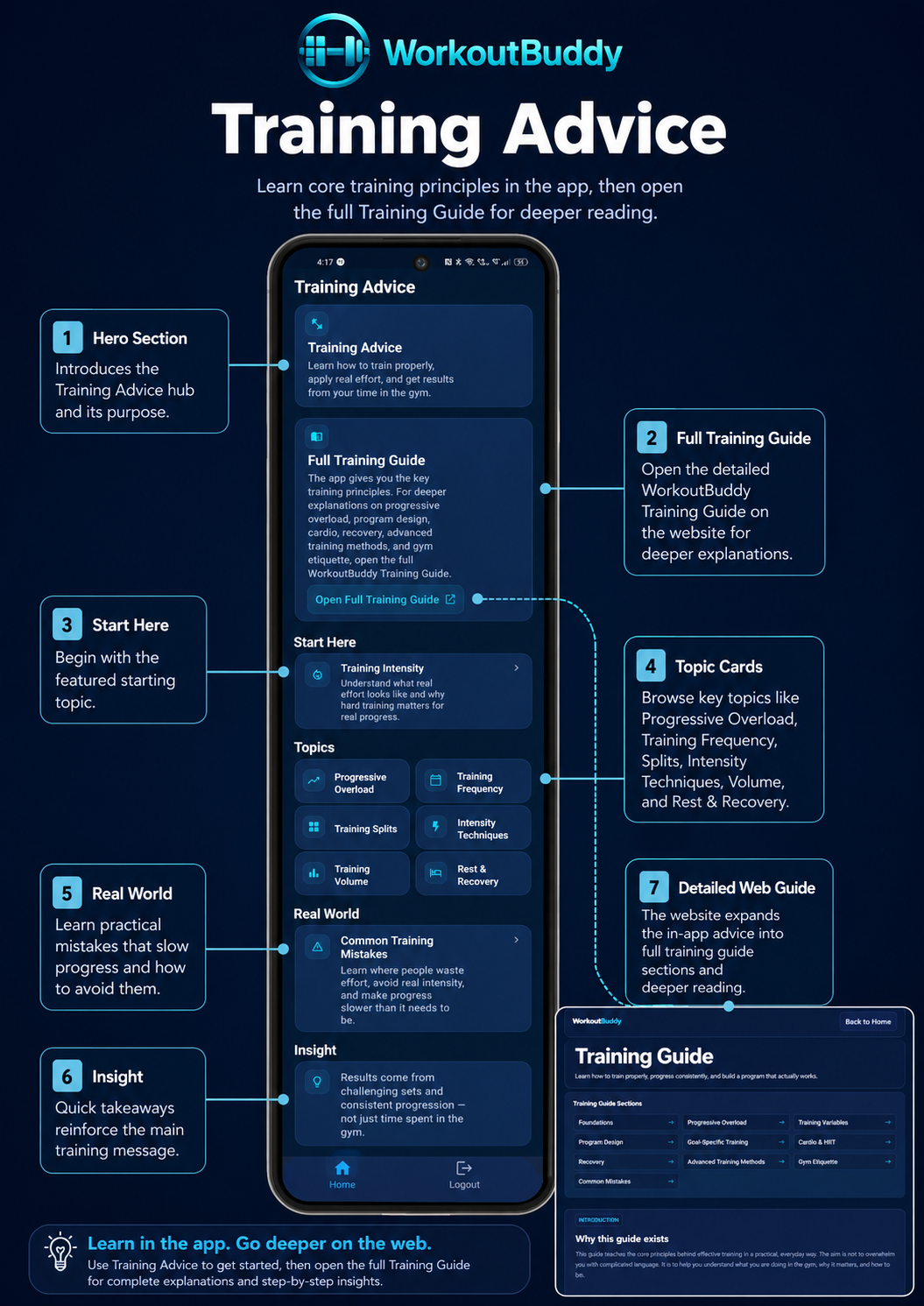
The Training Advice section is a structured in-app learning hub. It includes a hero section, a direct link to the full external Training Guide, a featured Start Here card, topic cards, and a wider real-world mistakes card.
- The featured starting topic is Training Intensity.
- The current topic grid includes Progressive Overload, Training Frequency, Training Splits, Intensity Techniques, Training Volume, and Rest & Recovery.
- The section also includes Common Training Mistakes and a link to the full website Training Guide.
This section is also premium-gated from Home in the current app build.
14. Subscription / Premium Access
Subscription / Premium Access
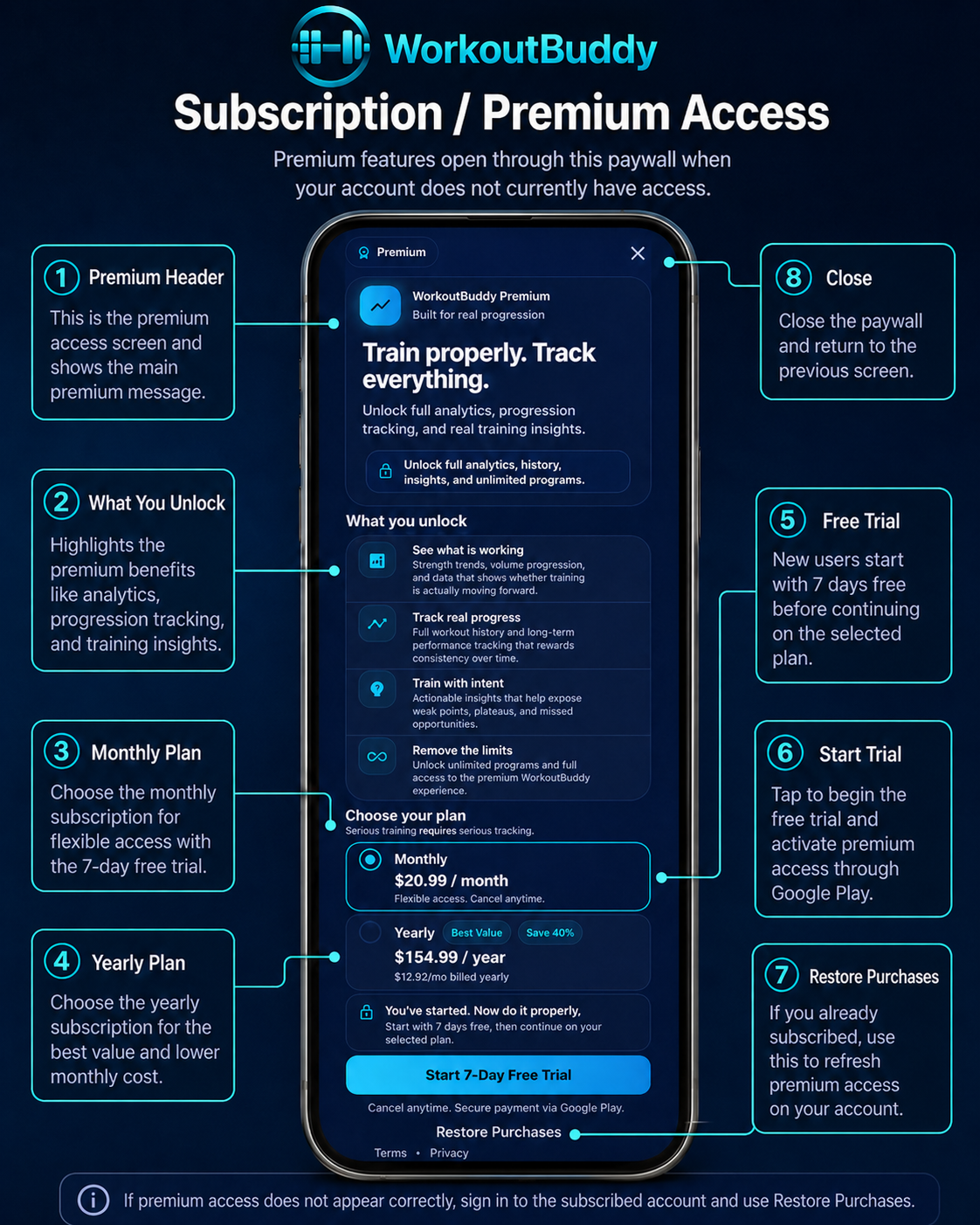
Several app sections are checked against premium access before they open. In the current Home screen code, Workout Planner, My Progress, Nutrition, Analytics, and Training Advice all check premium status and open the paywall when premium is inactive.
- Locked content means the current account does not have access to that feature right now.
- If premium access does not appear correctly, first make sure you are signed in to the same account used for the subscription.
- Check your internet connection so the app can refresh account access properly.
- Close and reopen the app if access looks stuck or outdated.
- If the problem continues, contact support.
15. Account / Settings
Account / Settings
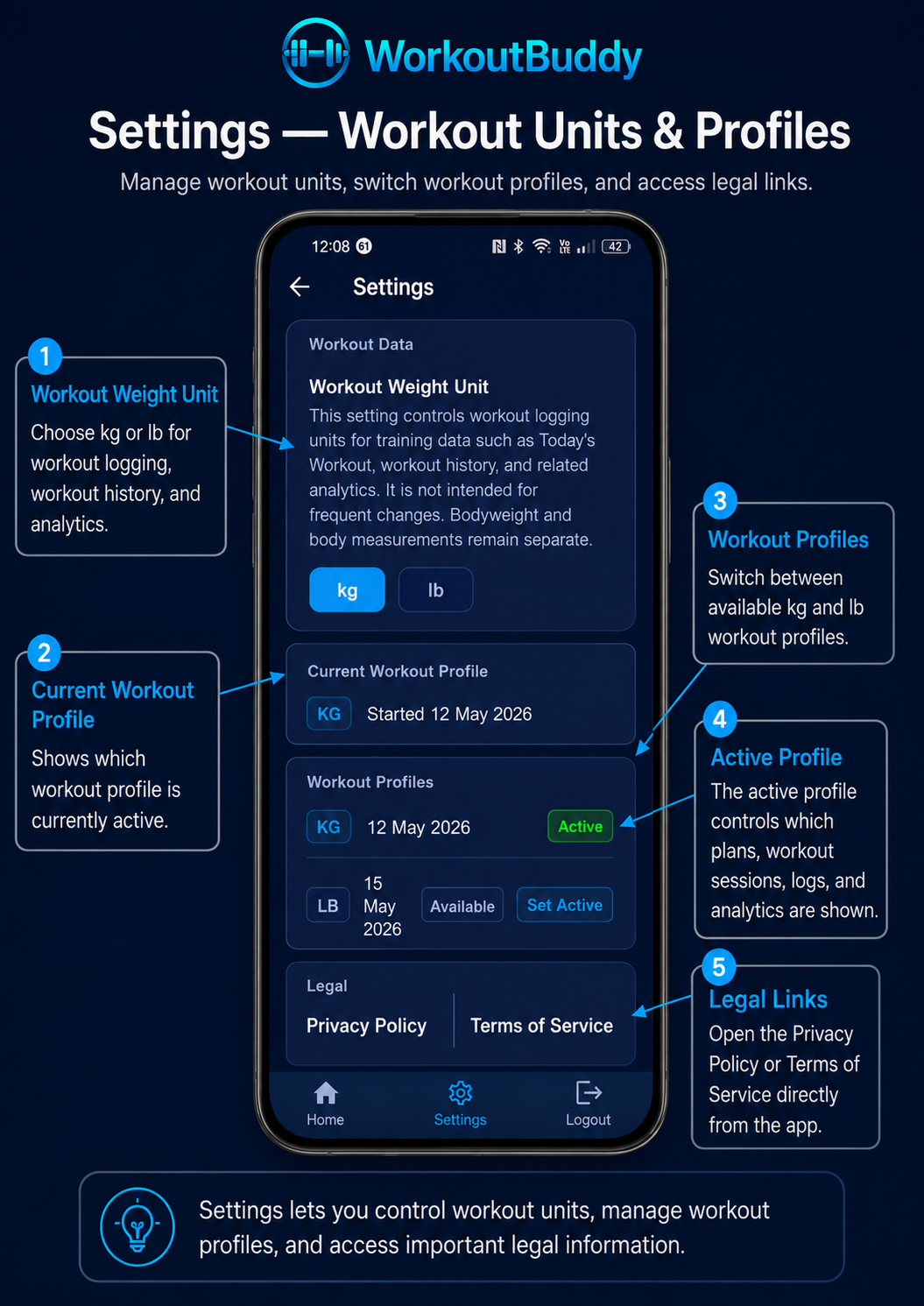
The Settings screen is where you manage app-level options that affect workout data, workout units, workout profiles, and legal links. You can open Settings from the bottom navigation bar between Home and Logout.
- Workout Weight Unit controls the unit used for workout logging, workout history, and workout analytics.
- You can use kg or lb for workout weights.
- Bodyweight and body measurements remain separate from workout weight units.
- The Current Workout Profile section shows which workout profile is currently active.
- Workout Profiles lets you switch between available kg and lb workout profiles if both have been created.
- The active workout profile controls which plans, workout sessions, workout history, and analytics are shown for that profile.
- This is useful if you train in different gyms or use different equipment setups, such as one gym using kg plates and another using lb plates.
- The Legal section gives direct access to the Privacy Policy and Terms of Service.
Only change workout weight units when you genuinely need to. Changing profiles affects which workout plans and workout history are shown, so always check that the correct profile is active before creating plans or logging workouts.
16. Troubleshooting / Common Questions
Troubleshooting / Common Questions
If something in WorkoutBuddy does not look right, the issue is usually tied to sign-in, the wrong active plan, an unsaved workout, or the wrong account. These are the most common questions users run into.
1. I forgot my password
Use the forgot password option on the sign-in screen. Wait for the reset email, then check spam, junk, promotions, or filtered folders if it does not show up quickly.
2. My plan is not showing
Open Workout Planner and check My Plans. Make sure the plan was actually saved or added, and confirm you are signed in to the account where that plan was created.
3. Today’s Workout is showing a rest day
This usually means the active plan marks that day as rest, or the wrong plan is marked Active. Go to Workout Planner and check which plan has the bright green Active badge.
4. My workout did not save
Make sure you finished the session from Today’s Workout. Finished sessions become read-only and should then appear in Workout Log. If needed, reopen the app and confirm you are signed in and connected.
5. I cannot access premium content
Check your internet connection, make sure you are signed in to the correct account, restart the app, and try again. If the issue continues, contact support.
6. I cannot find my favourite exercises
Open the Exercise Database and check your favourites there. If they still do not appear, confirm you are signed in to the same account where you saved them.
7. Where do I find the nutrition and training guides?
You can open the basic versions inside the app, and the full detailed versions on the website here:
8. How do I track my progress?
Use My Progress to create dated progress entries with photos and measurements. Use Profile baseline photos with the Compare action for starting-photo comparison, Analytics for charts and trends, and Workout Log for completed session history.
9. Where is the Plate Calculator?
Open it from the Home screen or the relevant tools area. It is used to work out the correct plates to load for a target barbell weight.
10. What is the difference between Progress and Analytics?
My Progress is for dated photo and measurement entries. Analytics is for charts and summaries such as bodyweight, weekly volume, 1RM trends, muscle distribution, completed workouts, and insights.